
Choose a mode
- In the editor, open the Tour tab and expand Tour Settings.
- Under View Direction (1), pick Reset per panorama or Keep when moving. The line underneath says what your choice does, and it saves straight away.
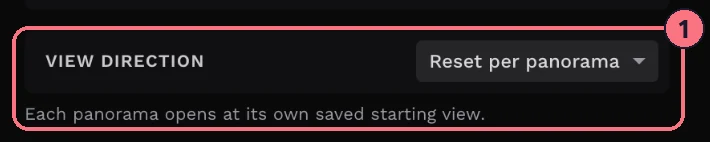
- Reset per panoramaEvery panorama opens on the view you chose for it. Feels like a guided slideshow. Best for showpiece rooms and marketing tours, where one angle sells the space. Needs a start view saved on each panorama.
- Keep when movingVisitors keep facing the same real-world direction as they move. Feels like walking through the building. Best for offices, warehouses and anywhere the layout matters. Needs north set on each panorama.
If you’re not sure, start with Reset per panorama. It’s more forgiving, and it’s what tours have always done. It used to be called Manual; Keep when moving used to be Automatic.
Set up Reset per panorama
For each panorama, save the view it should open on: in the Panorama tab, open View & Orientation and use Initial Position. See Set initial views for a panorama for the steps.
A panorama with no saved position opens wherever the camera happened to point, which is often a wall.
Set up Keep when moving
To keep a visitor’s compass direction, the tour needs to know where north is in each panorama. Without it, every panorama is treated as if it faces north, which it almost never does, and visitors arrive facing somewhere random.
- On every panorama, set the North Point in View & Orientation. See Set up north.
- Only once they’re all done, switch View Direction to Keep when moving.
Half a tour with north set is worse than none: the rooms without it are the ones that misbehave.
Hotspots can override both
A hotspot that links to another panorama can have its own View Direction, set in the Hotspot tab (see Set initial views). When a visitor clicks that hotspot, it always wins. So which way a visitor faces depends on how they arrive:
- Through a hotspot with a view directionThe hotspot’s direction, in either mode.
- Any other way, Reset per panoramaThe panorama’s initial position. That includes other hotspots, the thumbnail bar, the menu and the floor plan.
- Any other way, Keep when movingThe same compass direction as before.
That’s why a room can seem to open “backwards” from one hotspot and fine from the thumbnails. In a small tour, of 5 to 10 panoramas, setting each hotspot’s direction by hand gives you the most control. In a large tour, Keep when moving with north set everywhere is less work.
Check it worked
- Preview the tour as a visitor would, not in the editor.
- In the first room, turn until you face a corner or a blank wall.
- Move to the next room using the thumbnails. With Reset per panorama, you should land on the view you saved. With Keep when moving, you should still face the same way as that corner.
Neither? That panorama is missing its start view or its north point.
Common questions
Why do visitors arrive facing a wall?
With Keep when moving, that panorama has no north point set. With Reset per panorama, it has no initial position. Set the missing one in View & Orientation on the Panorama tab.
Why do some rooms face the right way and others don’t?
The rooms that misbehave are missing their north point or initial position. Work through them one at a time.
Why does one hotspot always land the wrong way?
That hotspot has its own View Direction, which always wins. Check it on the Hotspot tab, then change it, or choose Reset to remove it.
Why did nothing happen when I changed View Direction?
View Direction only applies when you move between panoramas. Move to another panorama to see it.