
Open Viewer Controls
- In the editor, open the panorama you want to change.
- On the Panorama tab, open View & Orientation. Viewer Controls is below Initial Position and North Point.
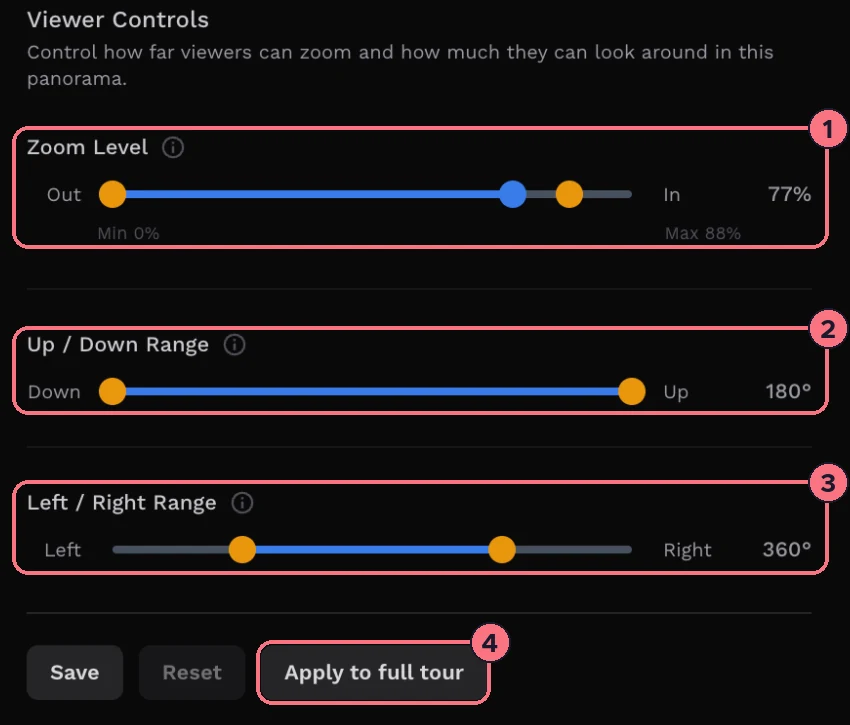
Zoom Level (1)
The zoom slider has three handles, from Out on the left to In on the right:
- Left handleThe furthest visitors can zoom out.
- Middle handleHow zoomed in the panorama is when it opens.
- Right handleThe furthest visitors can zoom in.
The number on the right shows the starting zoom, and the Min and Max below the slider show the limits.
Up / Down Range (2)
How far visitors can look up and down, up to 180°. At 180° they can see the whole ceiling and floor. Bring the handles in to keep the view level, for example to hide a tripod or a patched floor.
Left / Right Range (3)
How far visitors can turn left and right. Drag the Left and Right handles; the number shows the span in degrees. At 360°, the default, they can turn all the way round, and the limit only applies below that.
If the panorama only covers part of the circle, such as a 180° shot, set the range to match so visitors don’t turn into the empty edge. The edges of the view stop at the handles, and if the range is narrower than the screen, the view stays fixed in the middle. The panorama in the editor moves as you drag, so you can see the result before you save.
Save your changes
- SaveSaves the limits for this panorama. It lights up when you have changes to save.
- ResetPuts the sliders back to the last saved values.
- Apply to full tour (4)Copies this panorama’s zoom and look-around limits to every panorama in the tour. The editor asks you to confirm first, and tells you how many panoramas will change.
Tips
- Save before you move on. If you switch to another panorama first, your changes are lost.
- Check on a phone. A starting zoom that looks right on a laptop can feel cramped on a small screen.
- Don’t let visitors zoom too far. Past a point, a panorama turns soft and pixelated. Pull the right handle back until the closest zoom still looks sharp.
- To choose which way the panorama faces when it opens, see Set initial views for a panorama.
Common questions
How do I stop visitors zooming in too far on a 360 photo?
Open Viewer Controls, pull the right-hand Zoom Level handle back until the closest zoom still looks sharp, then choose Save.
How do I set the field of view for a panorama that isn’t a full 360°?
Drag the Left and Right handles of Left / Right Range to match the shot, such as 180°, and choose Save. Visitors then can’t turn into the empty edge.
Can I stop visitors looking down at the tripod?
Yes. Bring in the handles of Up / Down Range to keep the view level. To cover the tripod instead, add a nadir patch.
Can I use the same limits on every panorama in a tour?
Yes. Set up one panorama, then choose Apply to full tour. The editor tells you how many panoramas will change and asks you to confirm.